Table of Contents
ToggleWorking from home has shifted from a temporary setup to a permanent fixture for millions of people. The dining chair that seemed fine for a few weeks? It’s now causing daily discomfort, shoulder tension, and lower back pain. An office chair designed for good posture isn’t just about comfort, it’s a foundational piece of home infrastructure that affects productivity, health, and how someone feels at the end of an eight-hour workday. Choosing the right chair means understanding how the body interacts with furniture over time, not just how it feels during a five-minute showroom test. This guide breaks down what actually matters when selecting a posture-supporting office chair and how to set it up correctly.
Key Takeaways
- A best office chair for posture maintains your spine’s natural curves and prevents chronic pain by supporting the lumbar region, where most sitting stress occurs.
- Adjustable lumbar support, seat depth, and armrest height are essential features that allow the chair to fit individual body proportions and reduce shoulder, neck, and lower back strain.
- Proper chair setup takes just 15 minutes and requires setting seat height to 90-degree knee angles, positioning lumbar support at your belt line, and ensuring 2-4 inches of clearance between the seat edge and knees.
- Premium ergonomic chairs like the Herman Miller Aeron offer long-term durability and continuous support, while budget-friendly options like the Branch and Autonomous models deliver solid posture benefits for remote workers on a tighter budget.
- A posture-supporting office chair only works effectively when paired with correct desk and monitor alignment, so evaluate your entire workspace setup rather than relying on the chair alone.
Why Posture-Supporting Chairs Matter for Your Home Office
The human spine has natural curves, cervical, thoracic, and lumbar, that distribute weight and absorb shock during movement. Sitting collapses these curves into a C-shape unless the chair actively supports them. Over time, prolonged sitting without proper support leads to muscle fatigue, disc compression, and chronic pain.
A posture-correcting office chair maintains the spine’s natural alignment by supporting the lumbar curve (the inward curve of the lower back) and encouraging the pelvis to tilt slightly forward. This positioning keeps the shoulders back, the head aligned over the spine, and reduces the load on the lower back muscles.
Most people spend 6-10 hours daily in their desk chair. That’s more time than they spend in bed, yet few put as much thought into chair selection as they do mattress shopping. Poor posture compounds over months and years. Rounded shoulders, forward head posture, and tight hip flexors don’t develop overnight: they’re the result of repetitive positioning without adequate support.
Beyond pain prevention, proper posture improves breathing capacity and circulation. When the ribcage is compressed by slouching, lung capacity decreases. Blood flow to the legs is restricted when the seat pan digs into the back of the thighs. A well-designed chair addresses these issues through adjustability and ergonomic geometry.
Key Features to Look for in a Posture-Correcting Office Chair
Not all office chairs are built to support posture. Marketing terms like “ergonomic” get slapped on products that lack the adjustability needed for proper fit. Here’s what actually matters.
Lumbar Support and Adjustability
The lumbar region, the five vertebrae in the lower back, bears the most stress during sitting. A quality office chair for good posture includes adjustable lumbar support that can move up and down to match the user’s specific curve location, which varies by height and torso length.
Fixed lumbar pads are better than nothing, but they rarely align correctly for all users. Look for chairs with dual-adjustment mechanisms: vertical positioning (up/down) and depth (how far the support protrudes forward). Some advanced models use dynamic lumbar support that flexes with movement, maintaining contact as the user shifts positions.
The lumbar support should create a gentle forward pressure that prevents the pelvis from rotating backward. If someone can easily slouch even though the lumbar pad, it’s not providing enough support. Test by sitting back fully, the lower back should feel cradled, not pushed.
Backrest recline and tilt tension also play a role. A recline range of 95-120 degrees allows for position changes throughout the day. The tilt tension knob adjusts how much force is needed to recline, heavier users need more resistance to avoid feeling like they’re falling backward.
Seat Depth and Armrest Positioning
Seat depth, the distance from the front edge to the backrest, affects thigh support and spinal alignment. If the seat is too deep, shorter users can’t sit back against the lumbar support without the seat edge cutting into the backs of their knees, which restricts circulation. If too shallow, taller users lack thigh support.
Adjustable seat depth (also called seat pan slide) solves this. The ideal setup leaves 2-4 inches of clearance between the front edge of the seat and the back of the knees when sitting fully back. This ensures proper lumbar contact without pressure on the legs.
Armrests directly impact shoulder and neck posture. If they’re too high, the shoulders shrug upward, causing tension. Too low, and users lean to one side or let their arms dangle, which strains the neck and upper back. Height-adjustable armrests should allow the forearms to rest parallel to the floor with shoulders relaxed.
Width and pivot adjustability help, too. Armrests should be narrow enough to let the chair pull close to the desk but wide enough to support the arms without forcing the shoulders inward. Many modern chairs offer 4D armrests: height, width, depth, and pivot angle. According to ergonomic design principles, armrests that move with the user’s body position provide better long-term comfort than fixed supports.
Top Office Chairs for Posture Support in 2026
The market for ergonomic seating has matured significantly. Here are standout models based on adjustability, build quality, and user feedback from extended use.
Herman Miller Aeron (Remastered): Still the benchmark for mesh ergonomic chairs. The PostureFit SL lumbar system independently adjusts sacral and lumbar support, targeting the lower spine’s base and curve separately. Eight adjustment points cover everything from tilt limiter to arm height. Sized in A/B/C to fit different body types. It’s expensive, $1,400-$1,800, but the 12-year warranty and near-universal praise for long-term durability justify the cost for anyone spending serious hours seated.
Steelcase Leap V2: Known for its LiveBack technology, which changes shape as the user reclines to maintain continuous spinal support. The lumbar adjustment is intuitive (a simple firmness dial) and the seat edge is flexible, reducing pressure on the thighs. Price range is $900-$1,200. It’s quieter and less “mechanical” feeling than the Aeron, which some users prefer for home environments.
Haworth Fern: A newer contender with a wave-shaped backrest that supports the entire spine without a separate lumbar mechanism. The design adapts to movement naturally. It’s lighter and more visually approachable than traditional task chairs, fitting home office aesthetics better. Runs $800-$1,100. Good option for users who find heavy adjustability overwhelming and want intuitive support.
Autonomous ErgoChair Pro: Budget-friendly at $400-$500 without sacrificing core features. Adjustable lumbar support, headrest, seat depth, and recline tension. Build quality doesn’t match the Herman Miller tier, plastic components versus metal, but for someone hesitant to spend four figures, it delivers solid ergonomic function. Popular among remote workers outfitting home offices on a budget.
Branch Ergonomic Chair: Direct-to-consumer model priced around $350-$400. Adjustable lumbar, seat depth, and armrests. The catch: it ships flat-packed and requires assembly (about 30 minutes with an Allen wrench). Construction is sturdy enough for daily use, and the company offers a 7-year warranty, which is impressive at this price point. Based on detailed product testing, it performs well for users under 6 feet and 230 pounds.
Secretlab Titan Evo: Originally marketed to gamers, but the 2026 model has serious ergonomic chops. Magnetic memory foam head pillow and 4-way L-ADAPT lumbar system with adjustable depth and firmness. Leatherette upholstery is easy to clean, a practical consideration for home offices. $500-$600 range. The aesthetics skew “performance” rather than corporate, which works for some home setups and clashes with others.
All these chairs require proper setup to deliver their posture benefits. Even a high-end model won’t help if it’s adjusted incorrectly.
Setting Up Your Chair for Optimal Posture
Buying the right chair is half the job. Dialing in the adjustments takes 15 minutes but makes the difference between relief and continued discomfort.
Step 1: Set Seat Height
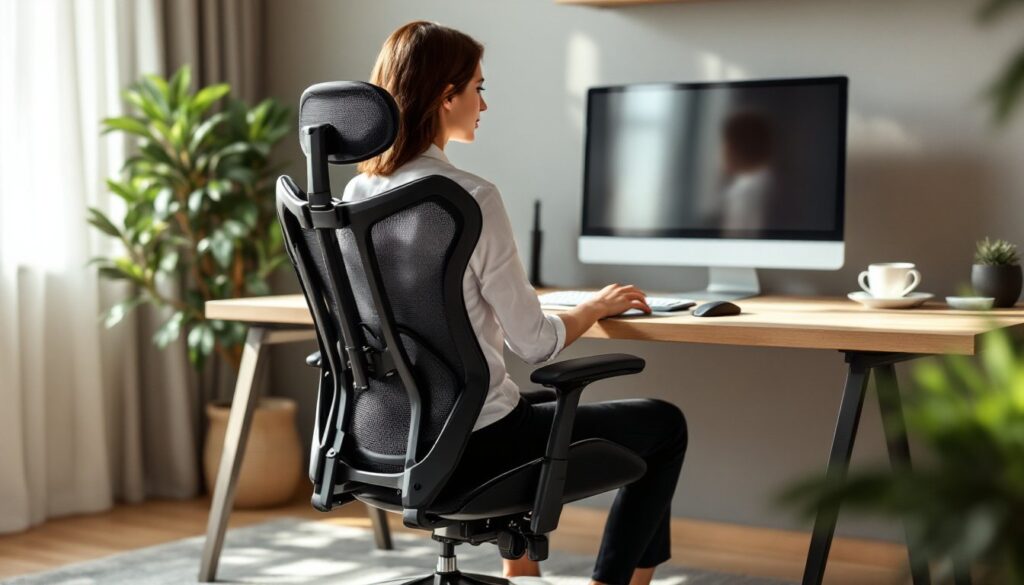
With shoes on (or off, if that’s typical), adjust the seat so feet rest flat on the floor and thighs are parallel to the ground. Knees should form a 90-degree angle. If the desk height is fixed and this creates clearance issues, a footrest can compensate. Dangling feet or excessive knee bend throws off the entire kinetic chain.
Step 2: Adjust Seat Depth
Sit fully back against the lumbar support. There should be 2-4 inches (roughly a fist width) between the seat edge and the back of the knees. If there isn’t a seat depth adjustment, a lumbar cushion can bring the back forward slightly, though this is a workaround, not a solution.
Step 3: Position Lumbar Support
The lumbar support should sit at the small of the back, roughly at belt line. Move it up or down until it feels like it’s gently pushing the lower back forward, discouraging slouching. Adjust the depth or firmness if available. Too much pressure feels intrusive: too little lets the pelvis roll backward.
Step 4: Set Armrest Height
Armrests should allow elbows to rest at a 90-degree angle with shoulders relaxed, not shrugged or drooping. If armrests force the shoulders up, lower them. If they’re too low and arms hang, raise them. For keyboard work, the forearms should be roughly parallel to the floor. Modern workspace design trends emphasize adjustable furniture to support varied tasks throughout the day.
Step 5: Adjust Recline and Tilt Tension
Set the tilt tension so leaning back requires slight effort but doesn’t feel like fighting a spring. A recline range of 100-110 degrees for active work and 110-120 degrees for reading or video calls provides variation. Some users prefer a forward tilt (seat pan angles slightly down) for tasks requiring leaning forward, though this isn’t common on all models.
Step 6: Check Desk and Monitor Alignment
The chair is only part of the system. Monitor height should place the top of the screen at or slightly below eye level, about 20-30 inches from the eyes. Keyboard and mouse should be close enough that elbows stay near the body without reaching. If the desk is too high or low, even a perfect chair can’t fix the resulting posture issues.
Revisit these settings periodically. Body dimensions shift, and preferences change as muscles adapt to better posture. A chair that felt right initially might need tweaking after a few weeks.
Conclusion
An office chair for good posture is an investment in daily comfort and long-term health, not just a piece of furniture. The right chair supports the spine’s natural curves, adjusts to individual proportions, and encourages movement throughout the day. Whether choosing a top-tier ergonomic model or a budget-friendly option with solid core features, proper setup is what transforms adjustability into actual support. Take the time to dial in seat height, lumbar position, and armrest alignment, the body will notice the difference within days.